
TreePlotter Mobile is currently in Beta and is being rolled out gradually. Some features described here are still being refined based on customer feedback.
What Is TreePlotter Mobile?
TreePlotter Mobile is a purpose-built field tool that lets you work faster in the field while keeping your data accurate and aligned in real time with TreePlotter Desktop. It’s designed specifically for the way work happens on-site: in front of a tree, on a work order, or during an inspection.
TreePlotter Mobile does not replace TreePlotter Desktop. Desktop remains your full system of record for configuration, planning, and reporting. Mobile extends that system into the field with a streamlined, mobile-first experience for inventory and task work. The two are connected: anything you do in Mobile syncs to Desktop in real time, and vice versa.
TreePlotter Mobile is included at no additional cost with the TreePlotter Complete package. Beta access must be enabled for your account and for each individual user — talk to your PlanIT Geo account team to get started.
Getting Started
Accessing TreePlotter Mobile
- TreePlotter Mobile is a progressive web app — there is nothing to download from an app store.
- On your phone or tablet, open any modern mobile browser and go to app.us.treeplotter.com.
- (The URL above is for US accounts. Non-US accounts use a different regional subdomain)
- Sign in with your full email address and password.
- For a more app-like experience, you can add TreePlotter Mobile to your device’s home screen as a shortcut icon, using your browser’s “Add to Home Screen” option.
Beta access is limited. If you or a teammate can’t log in yet, confirm with your PlanIT Geo account team that your account and user have been enabled for TreePlotter Mobile.
Signing in with multiple accounts or organizations
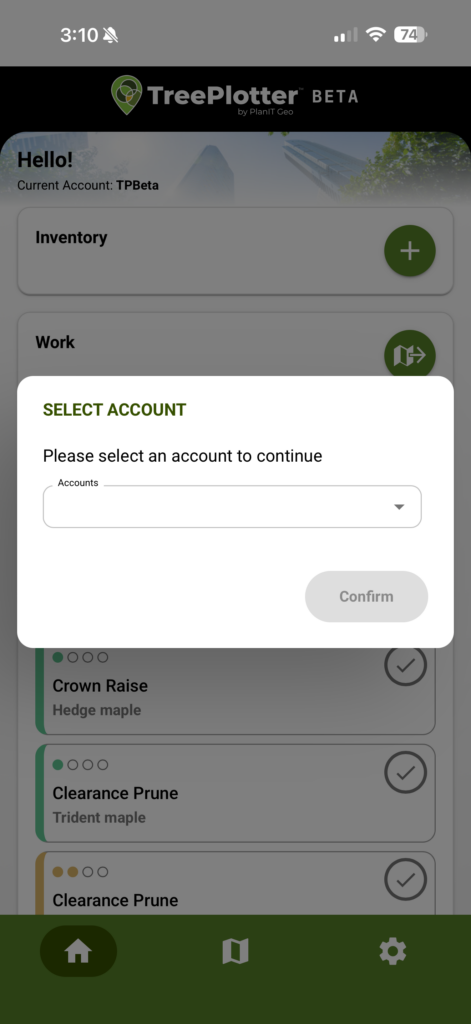
- If your email is associated with more than one TreePlotter account, you’ll be asked to choose which one to work in after signing in. (Left)
- If your account has multiple organizations or client sites set up, you’ll see an organization selector as well. Every Mobile user can see and select any organization within the account, even ones they may not normally work with in Desktop.
Troubleshooting sign-in issues
- Typing a username instead of a full email address. Both Mobile and Desktop now use your full email address as your login, not the shorter username some accounts used previously.
- “No account found” after resetting your password: This usually means the email you typed doesn’t exactly match what’s on file, or your account hasn’t finished being enabled for Mobile yet. Double-check the email with your account administrator, then contact your PlanIT Geo account team if it persists.
- Password reset email never arrives: Check your spam/junk folder first. If it’s still missing, contact your PlanIT Geo account team to confirm the email address on your account and have it resent.
Heads up for admins: when your account is enabled for TreePlotter Mobile, every user on the account moves to this same email + password login — including users who don’t need access to Mobile — and everyone will be prompted to reset their password on their next login. This does not otherwise change anyone’s existing Desktop data, settings, or saved filters.
How-To Guide
Finding your way around the map
- When you open the map, it centers on your current physical location, shown as a blue location dot. This is intentional — TreePlotter Mobile is a field tool built around where you’re standing, not a planning view of your whole territory. (Location accuracy can vary by a small margin and may take a moment to refine.)
Example of Blue Location Dot
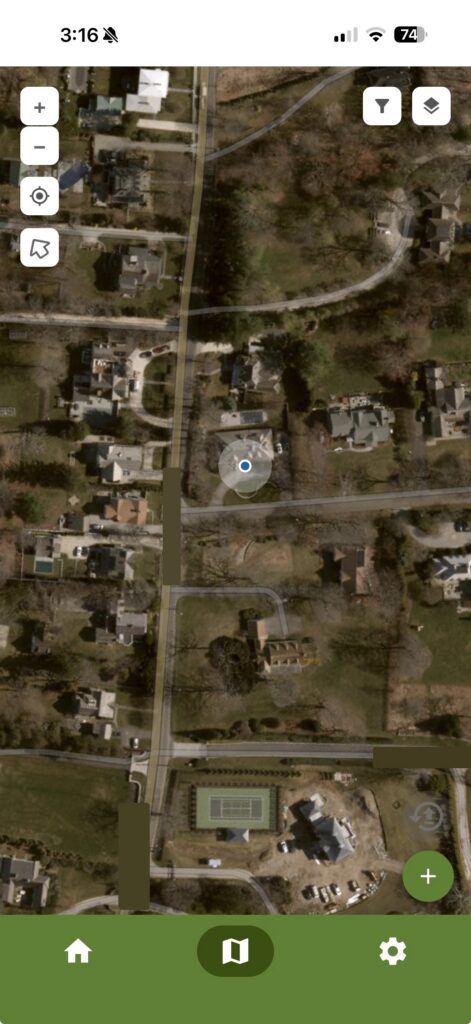
- Tap once on empty space: nothing happens (this prevents accidental tree additions).
- Press and hold on empty space: opens a new tree form at that location.
- Tap once on an existing tree: opens that tree’s details.
- Press and hold on an existing tree: opens a quick-action menu for Work, Inspections, and Move.
Example of Quick-Action Menu

- The map icon near your task list opens a broader map view. If your task list is filtered, this view zooms to show the filtered tasks; if not, it can zoom out much farther, since it’s centered on your work rather than your location.
- Map Display-by options: condition, status, work priority
Adding and updating trees
TreePlotter Mobile’s inventory currently covers a focused set of core fields rather than every field available in Desktop: status, common name, Latin name (auto-populated), tree height, DBH, condition, observations, and free-text notes. Dropdown options reflect your account’s existing Desktop configuration.
- To add a tree: press and hold on the map where the tree is located, fill out the form, and tap Save. GPS coordinates and address populate automatically.
- To update an existing tree: tap it on the map to open Tree Details, then edit and save.
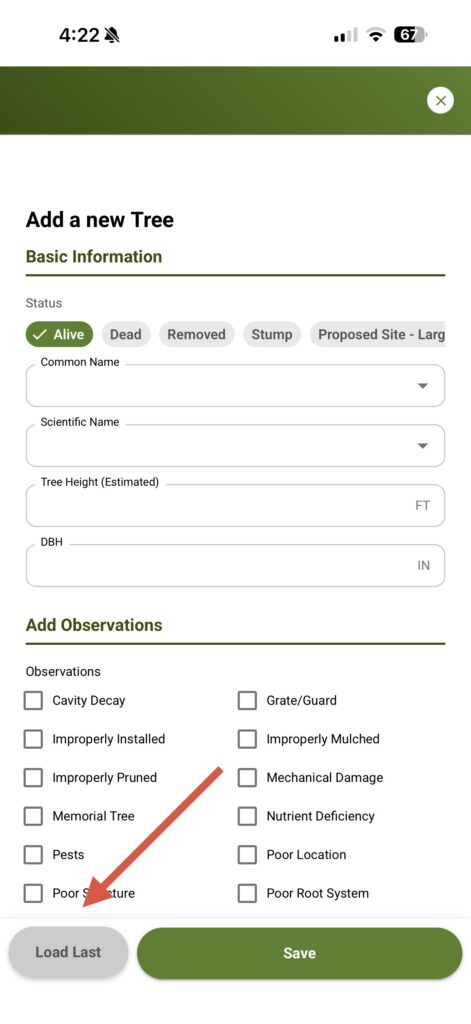
- “Load Last” and “Bulk Load Last” let repeated details carry over from your last entry, which speeds up adding several similar trees in a row. Note: using Load Last on a tree you’re already editing will overwrite any unsaved changes on that tree, after a confirmation prompt — so save your work first if you don’t want it replaced. (Right)
- You can add, view, and delete photos on any tree.
A note on editing condition and observations
Tree status, height, DBH, and notes can be edited directly from Tree Details. Condition and observations work differently: because these fields are core to a tree’s health record, changing them requires completing an Inspection rather than editing them in place. This keeps an accurate history of when and why a tree’s condition changed, rather than silently overwriting the previous value.
Similarly, a tree’s location can only be corrected by moving its pin on the map — coordinates can’t be typed in directly. If your account doesn’t track coordinates, the location field won’t auto-populate.
Completing work tasks
Any work record created in TreePlotter — whether it originated in Desktop or Mobile — appears in Mobile as a task.
- You can create a task directly from a tree in Mobile, setting Task Type, Priority, Due Date, and Assignee. (Work Orders – grouping multiple tasks – still need to be created in Desktop.)
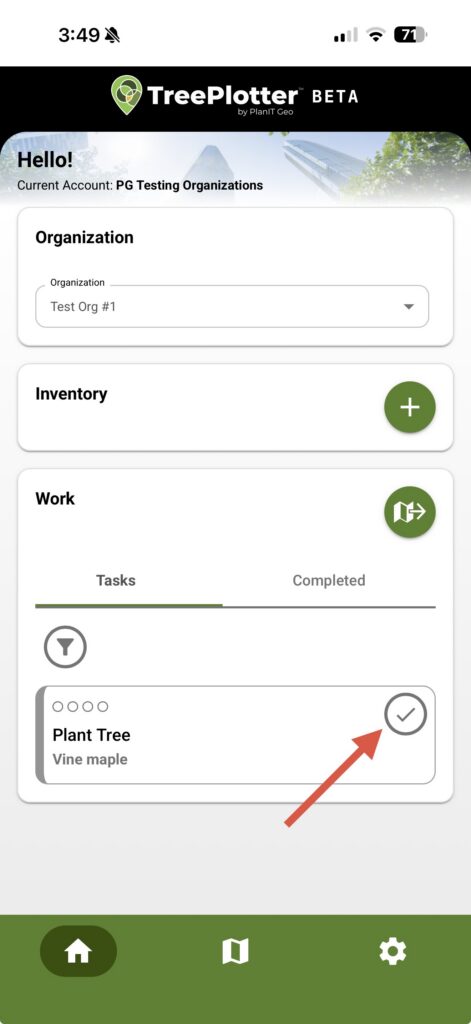
- From your home screen task list, or from a tree’s Work tab, tap the checkmark to mark a task complete. You can tap again to mark it incomplete if you tapped by mistake. (Left)
- You can add photos to a task before or when completing it.
- When you filter the map to a specific set of work, trees without matching work are hidden from view so you can focus on what needs attention.
Filtering your task list
You can filter tasks by Priority, Assigned To, Task Type, and Work Order (ID and name). A filter only appears if your account has that field configured — for example, if your account doesn’t use a Priority field, the Priority filter won’t show up.
Service requests are not yet supported in TreePlotter Mobile; they continue to be managed in Desktop.
Understanding priority indicators
Where your account uses TreePlotter Mobile’s standard priority levels, tasks show a colored dot indicating priority: Low and Medium (yellow), High (red), Urgent (purple), or unspecified (gray). If your account’s priority values don’t match this standard set, the priority indicator and filter won’t display. Unsupported Work Priority values can be updated to appear in Mobile.
Inspections and risk assessments
To start an inspection, either tap into a tree and open the clipboard tab, or press and hold a tree and choose the clipboard option from the quick-action menu.
- Basic Inspection: record updated condition, observations, and notes for a tree.
- Basic Risk Assessment: evaluate a tree’s risk (based on the part of the tree, potential target, impact, and likelihood) to help prioritize follow-up work. The risk rating is calculated automatically using a standard, industry-recognized risk-rating rubric. (Right)
- Inspection and risk assessment results sync in real time with Desktop — there’s no separate “mobile-only” record.
- Tree History is viewable in Mobile, currently showing inspection and assessment records.
FAQs
Can I add trees (points) using TreePlotter Mobile?
Yes. Press and hold on the map where you’d like to add a tree, fill out the details form, and tap Save. The tree is added and automatically synced with TreePlotter Desktop.
Can I update or re-inspect an existing tree in Mobile, or only add new ones?
Both. You can add new trees and update or re-inspect existing ones directly in TreePlotter Mobile — tap a tree on the map to open it and make your edits.
Why can’t I edit a tree’s condition or observations directly on the Tree Details screen?
These fields require a formal Inspection so there’s an accurate record of what changed and when. Fields like status, height, DBH, and notes can still be edited directly.
Will Mobile disrupt our current workflows?
No. TreePlotter Mobile is additive. Your Desktop workflows remain unchanged — Mobile simply makes field execution faster and easier.
Why wouldn’t I just use Desktop on a tablet?
You can, but Desktop wasn’t designed for mobile workflows. TreePlotter Mobile reduces taps, simplifies screens, and improves speed and accuracy in the field.
Do we have to give our full team access to TreePlotter Mobile?
No. Mobile is built for field use, while Desktop remains the tool for planning, configuration, and reporting. Most organizations start by enabling Mobile for field crews and trusted users, then expand access gradually.
Why do I suddenly need to log in with my email instead of my username, even on Desktop?
Enabling TreePlotter Mobile for your account moves everyone on that account to a unified login shared by Desktop and Mobile — a full email address plus password, instead of a username. It doesn’t change your inventory data, configuration, or saved filters.
I reset my password like I was asked to, but I’m still getting a “no account found” error. What’s going on?
This almost always means the email address you’re logging in with doesn’t exactly match the one on your user account, or your account is still finishing the switch-over to Mobile. Check with your account administrator to confirm the email on file, and reach out to PlanIT Geo support if it still doesn’t resolve.
Are organizations (client sites) supported in TreePlotter Mobile?
Yes. Organizations are available as a dropdown so you can select the correct one. Note that during the beta, all users can see and select any organization within the account, and can view the trees and tasks associated with it.
Can I view multiple map or reference layers in TreePlotter Mobile?
Not yet. Only the main Trees layer is available today.
Can I view or manage service requests in TreePlotter Mobile?
Not in this release. Service requests are currently managed through TreePlotter Desktop.
Can I view or create work orders and work tasks in TreePlotter Mobile?
You can view and create a task directly from a tree in Mobile, setting Task Type, Priority, Due Date, and Assignee. Work Orders still need to be created in Desktop.
Does TreePlotter Mobile support custom fields?
Not at this time. Mobile currently displays core inventory fields only.
Does TreePlotter Mobile support external GPS or GNSS devices for high-accuracy location capture?
Not currently. Tree location is set using your device’s built-in GPS.
How reliable is TreePlotter Mobile in low-connectivity environments?
TreePlotter Mobile is built for real-world field conditions. If your connection drops, the data you enter is saved on your device and syncs automatically once service returns, so you won’t lose your work. Some features, like loading new map areas, do require an active connection.
Is TreePlotter Mobile connected to my live production data?
Yes. Mobile works directly with your live production data, not a test or staging environment. Changes you make in the field sync in real time with Desktop.
What does TreePlotter Mobile cost?
It’s included at no additional cost for existing TreePlotter Complete customers. Beta access must be enabled — contact your account team to get started.
Getting Help & Sharing Feedback
TreePlotter Mobile is in active beta, which means your feedback directly shapes what gets built next.
- Questions about your account, billing, or getting additional users enabled: contact your PlanIT Geo account team.
- Feedback, feature requests, or issues you run into while using TreePlotter Mobile: reach out to your PlanIT Geo account team, who can route it to the product team.
- Found something that looks like a bug? Let PlanIT Geo support know with as much detail as possible (what you were doing, what you expected, and what happened instead) so it can be investigated quickly.