
Would you like to track which trees have just been inspected and have them in a different colour to the trees yet to be inspected? It is possible for your TreePlotter™ to be configured so that the Display By has the option to colour code by a new field called Inspection Status. This document explains what changes we could implement and how to incorporate them into your inspection schedule.
This functionality is available free, upon request.
Topics covered in this document:
- What you will receive
- What we will need
- Customisation options
- How to make use of the field
What you will receive:
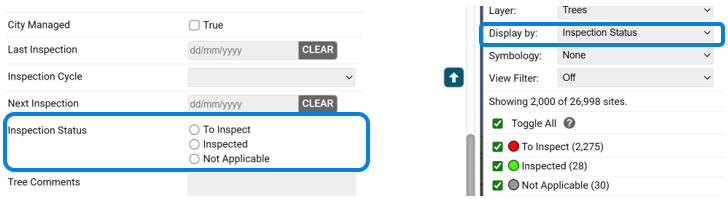
- New field: Inspection Status
- Located on the Tree tab
- Options are
- To Inspect
- Inspected
- Not Applicable
- It will be added to the Inspection form
- New ‘Display By’ option: Inspection Status
- This will appear in the Legend in the Display By dropdown
- It will colour code the trees as follows:
- Green: Trees that have been inspected
- Red: Trees not yet inspected
- Grey: Trees that aren’t due to be inspected in this current inspection cycle
What we will need:
- Simply let us know that you would like this adding to your application!
- Please contact TreePlotter Support here.
Customisation options:
- The field name, option labels, and colour settings are fully customisable should any adjustments be required.
How to make use of the field:
Initial setup
- Use the Mass Updater tool to update all trees that are due to be inspected with an Inspection Status of ‘To Inspect’
- Consider your period of inspection, is it this year, this season, or part of a scheduled cycle?
- You might need to inspect all trees, or you might be running a 4-year inspection cycle where only a quarter of your trees are inspected annually
- Use the Mass Updater tool to update all trees that don’t have an Inspection Status of ‘To Inspect’ to have an Inspection Status of ‘Not Applicable’, because they aren’t being inspected this year/this round of inspections.
Inspection Process
- Advise the inspectors to change the Inspection Status field to ‘Inspected’ as part of the inspection process. The field is on the inspection form for convenience
- This will mark the tree as inspected and change the colour to green
- Consider setting the Display By to ‘Inspection Status’ to easily track inspection progress.
Note: If the field isn’t updated, you can filter for trees with an inspection record within a given timeframe and then set Inspection Status to ‘Inspected’ to update those trees all in one go
Setup ahead of the next round of inspections
- Use the Mass Updater tool to set the Inspection Status to blank
- Continue with the instructions in the initial setup steps.